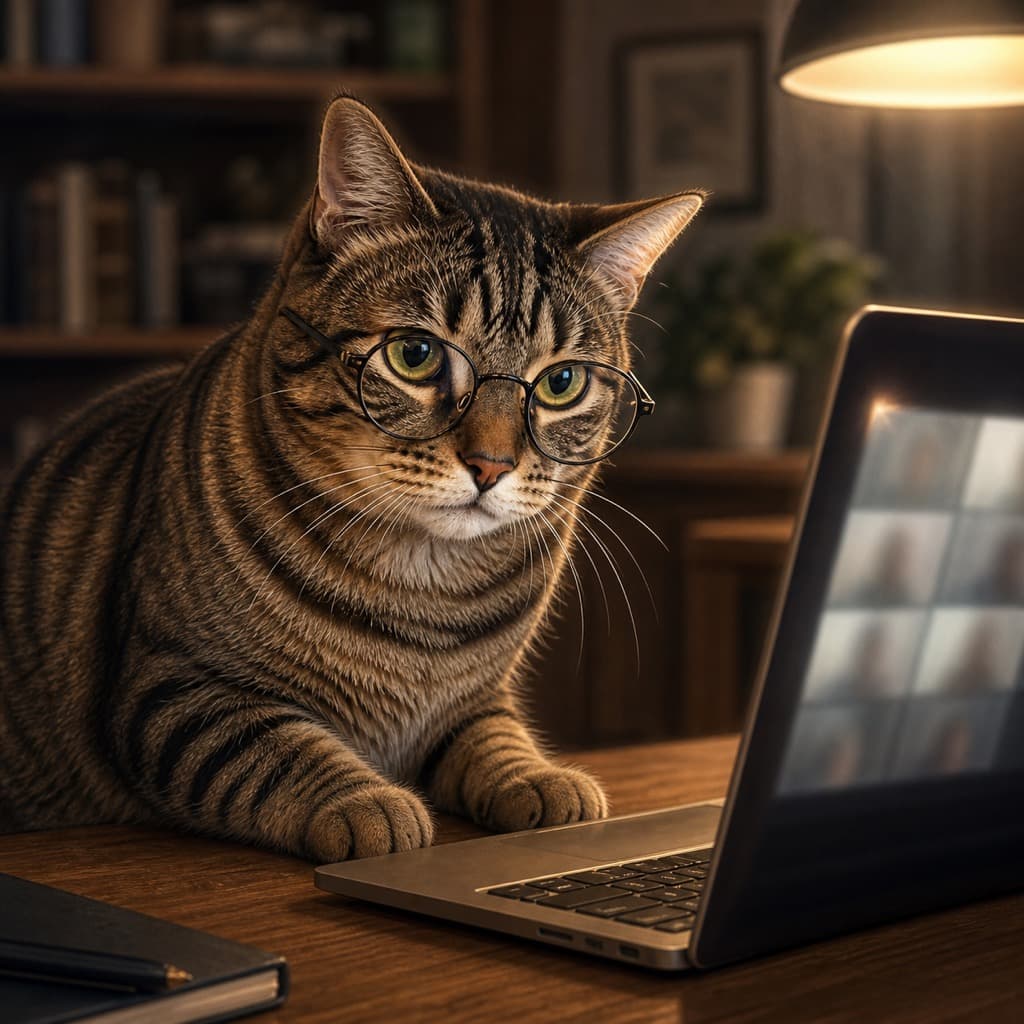
A custom pet wallpaper does not require a separate product. The finished portrait is already a high-resolution digital image; the practical task is placing that square artwork inside a screen-shaped canvas without cutting through the ears, crown, or face.
The safest approach is composition rather than cropping. Keep the complete square portrait visible, add a coordinated color or softly blurred extension around it, and reserve quiet space for interface elements. This preserves the artwork and often looks more intentional than stretching it edge to edge.
Phone wallpaper: protect the clock and icons
Modern phones are much taller than a square portrait. Create a vertical canvas in a photo editor, center or slightly lower the square artwork, and fill the remaining area with a color sampled from the background. Keep the top portion calm so the clock stays readable. If the pet wears a crown or tall hat, leave extra breathing room above it.
Apple's current iPhone instructions let you choose one of your own photos from Settings → Wallpaper → Add New Wallpaper, then customize the Lock Screen and Home Screen separately. The phone may offer its own crop and depth effects; inspect the preview carefully before saving.
See your pet in a free preview
Upload one clear photo, pick a character, and judge the likeness yourself before paying anything.
Desktop wallpaper: use the extra width
A desktop is wider than the square file. Place the portrait to the left or right and extend its background across the remaining space. Choose the side based on where your desktop icons live. A centered square with wide color fields can also work, especially on an uncluttered monitor.
On a Mac, Apple currently allows a custom image file through System Settings → Wallpaper or by control-clicking a saved image and choosing Set Desktop Picture. Windows and ChromeOS offer comparable custom-background controls. Select a fit option that contains the whole artwork rather than zooming until it fills the screen.
Use a pet portrait behind video calls
For a video-call background, do not place the pet in the exact center; your head and shoulders will cover it. Put the artwork in the outer third of a 16:9 canvas and use a calm extension on the other side. Avoid tiny text, detailed frames, and visual clutter near your face.
Google Meet's official help confirms that users can upload a custom static image in Backgrounds and effects, subject to account and administrator settings. Its self-view can appear mirrored even though other participants see the correct orientation, so avoid designs that depend on directional text.
Which portrait styles work best
Classic Portrait makes a restrained lock screen. Royal Portrait creates a dramatic centerpiece, while Astronaut and Comic Book Hero suit playful desktops. The Work From Home set is an especially natural source of office-themed imagery.
Use the paid PNG or JPEG rather than downloading the watermarked preview. Keep an untouched copy of the original file, then make separate phone and desktop copies so an experimental crop never replaces the artwork you purchased.